How to customize/update shadcn components

14 min readMar 27, 2026

Ajay Patel

Creator of shadcn studio

Understanding shadcn/ui and Why It’s Different

shadcn/ui works differently compared to most UI component libraries. Instead of installing a full package with dozens of components, you only add the components you actually need. Each component is copied directly into your project as source code.

Because of this approach, your project stays lightweight and you’re not locked into any predefined styles or behavior. You have full control to modify the components however you like—whether that’s changing styles, structure, or functionality.

In this article, we’ll explore different ways to customize and update shadcn/ui components to better fit your project’s needs.

How to customize existing shadcn/ui components

There are several ways to customize existing shadcn/ui components. The right approach depends on what you want to change—global styles, component variants, small UI tweaks, or animations. Below are some common and practical methods you can use based on your requirements.

1. Customize Styles Using CSS Variables

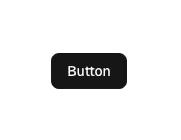
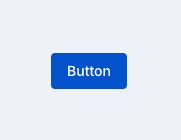
This is the easiest and most recommended way to customize shadcn/ui components. If you want to change global styles such as colors, border radius, or shadows across your entire project, CSS variables are the best option.

shadcn/ui relies heavily on CSS variables, which makes it simple to match the components with your own design system. You can update these variables in one place, and the changes will reflect across all components. You can find the full list of available variables in the official shadcn/ui theming documentation.

To update the styles, modify the variables inside the app/global.css file, as shown below:

app/global.css

:root {
  --primary: oklch(0.48 0.20 260.47);
  --primary-foreground: oklch(1.00 0 0);
  --radius: 0.375rem
}

Before

After

2. Adding Custom Variants to shadcn/ui Components

This approach is generally not recommended for large changes. Instead of modifying the original component, it’s usually better to create a new component by copying the existing one and making changes there.

However, if you really need to update the default styles or add new variants to an existing shadcn/ui component, you’ll need a basic understanding of:

  • cva – used by shadcn/ui to define variants
  • cn – used to merge class names conditionally

In the example below, we add a new warning variant to the shadcn/ui Button component.

ui/button.tsx

import * as React from 'react'

import { Slot } from '@radix-ui/react-slot'
import { cva, type VariantProps } from 'class-variance-authority'

import { cn } from '@/lib/utils'

const buttonVariants = cva(
  "focus-visible:border-ring focus-visible:ring-ring/50 aria-invalid:ring-destructive/20 dark:aria-invalid:ring-destructive/40 aria-invalid:border-destructive inline-flex shrink-0 items-center justify-center gap-2 rounded-md text-sm font-medium whitespace-nowrap transition-all outline-none focus-visible:ring-[3px] disabled:pointer-events-none disabled:opacity-50 [&_svg]:pointer-events-none [&_svg]:shrink-0 [&_svg:not([class*='size-'])]:size-4",
  {
    variants: {
      variant: {
        default: 'bg-primary text-primary-foreground hover:bg-primary/90',
        destructive:
          'bg-destructive hover:bg-destructive/90 focus-visible:ring-destructive/20 dark:focus-visible:ring-destructive/40 dark:bg-destructive/60 text-white',
        warning:
          'bg-amber-600 text-white hover:bg-amber-600/90 focus-visible:ring-amber-600/20 dark:bg-amber-400 dark:hover:bg-amber-400/90 dark:focus-visible:ring-amber-400/40',
        outline:
          'bg-background hover:bg-accent hover:text-accent-foreground dark:bg-input/30 dark:border-input dark:hover:bg-input/50 border shadow-xs',
        secondary: 'bg-secondary text-secondary-foreground hover:bg-secondary/80',
        ghost: 'hover:bg-accent hover:text-accent-foreground dark:hover:bg-accent/50',
        link: 'text-primary underline-offset-4 hover:underline'
      },
      size: {
        default: 'h-9 px-4 py-2 has-[>svg]:px-3',
        sm: 'h-8 gap-1.5 rounded-md px-3 has-[>svg]:px-2.5',
        lg: 'h-10 rounded-md px-6 has-[>svg]:px-4',
        icon: 'size-9',
        'icon-sm': 'size-8',
        'icon-lg': 'size-10'
      }
    },
    defaultVariants: {
      variant: 'default',
      size: 'default'
    }
  }
)

function Button({
  className,
  variant,
  size,
  asChild = false,
  ...props
}: React.ComponentProps<'button'> &
  VariantProps<typeof buttonVariants> & {
    asChild?: boolean
  }) {
  const Comp = asChild ? Slot : 'button'

  return <Comp data-slot='button' className={cn(buttonVariants({ variant, size, className }))} {...props} />
}

export { Button, buttonVariants }

Button usage

import { Button } from '@/components/ui/button'

const ButtonDemo = () => {
  return <Button variant='warning'>Button</Button>
}

export default ButtonDemo

Output

3. Updating Components Using Inline Classes

Most shadcn/ui components can be easily customized using inline Tailwind classes. This method is simple, flexible, and works well for small UI changes without touching the component source code.

In many cases, you can achieve your desired design just by passing custom classes through the className prop.

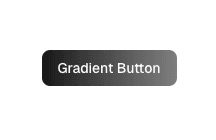
Here’s an example of creating a primary gradient button using the existing shadcn/ui Button component:

gradient-button.tsx

import { Button } from '@/components/ui/button'

const ButtonGradientDemo = () => {
  return (
    <Button className='from-primary via-primary/60 to-primary bg-transparent bg-gradient-to-r [background-size:200%_auto] hover:bg-transparent hover:bg-[99%_center]'>
      Gradient Button
    </Button>
  )
}

export default ButtonGradientDemo

Output

4. Customizing Animations with tw-animate-css

shadcn/ui uses tw-animate-css to handle basic animations, such as opening dropdowns or expanding accordion content. These small animations make interactions feel smoother and improve the overall user experience.

You can customize or extend these animations using Tailwind utility classes.

In the example below, we add a slide-up animation to the shadcn/ui Dropdown Menu component:

animated-dropdown.tsx

import { Button } from '@/components/ui/button'
import {
  DropdownMenu,
  DropdownMenuContent,
  DropdownMenuGroup,
  DropdownMenuItem,
  DropdownMenuLabel,
  DropdownMenuPortal,
  DropdownMenuSeparator,
  DropdownMenuSub,
  DropdownMenuSubContent,
  DropdownMenuSubTrigger,
  DropdownMenuTrigger
} from '@/components/ui/dropdown-menu'

const AnimatedDropdownMenuDemo = () => {
  return (
    <DropdownMenu>
      <DropdownMenuTrigger asChild>
        <Button variant='outline'>Basic</Button>
      </DropdownMenuTrigger>
      <DropdownMenuContent className='data-[state=closed]:slide-out-to-left-0 data-[state=open]:slide-in-from-left-0 data-[state=closed]:slide-out-to-bottom-20 data-[state=open]:slide-in-from-bottom-20 data-[state=closed]:zoom-out-100 w-56 duration-400'>
        <DropdownMenuLabel>My Account</DropdownMenuLabel>
        <DropdownMenuSeparator />
        <DropdownMenuGroup>
          <DropdownMenuItem>Profile</DropdownMenuItem>
          <DropdownMenuItem>Billing</DropdownMenuItem>
        </DropdownMenuGroup>
        <DropdownMenuSeparator />
        <DropdownMenuGroup>
          <DropdownMenuSub>
            <DropdownMenuSubTrigger>Invite users</DropdownMenuSubTrigger>
            <DropdownMenuPortal>
              <DropdownMenuSubContent>
                <DropdownMenuItem>Email</DropdownMenuItem>
                <DropdownMenuItem>Message</DropdownMenuItem>
                <DropdownMenuSeparator />
                <DropdownMenuItem>More...</DropdownMenuItem>
              </DropdownMenuSubContent>
            </DropdownMenuPortal>
          </DropdownMenuSub>
          <DropdownMenuItem>GitHub</DropdownMenuItem>
          <DropdownMenuItem>Support</DropdownMenuItem>
          <DropdownMenuItem disabled>API</DropdownMenuItem>
        </DropdownMenuGroup>
      </DropdownMenuContent>
    </DropdownMenu>
  )
}

export default AnimatedDropdownMenuDemo

Creating Your Own Custom shadcn/ui Components

Instead of directly modifying shadcn/ui components, it’s usually better to copy and extend them or build your own custom components on top of them. This approach keeps the original components intact and makes future updates much easier.

If you're looking for inspiration while building custom components, you can explore resources like Shadcn Studio, which provides a collection of 1000+ Shadcn components and shadcn blocks built with shadcn/ui that you can study or adapt for your own projects.

Creating a custom component also gives you full freedom to use any animation or utility library you prefer, while still keeping everything aligned with your design system.

In the example below, we create a button with a ripple effect using motion/react. To keep the look and feel consistent with shadcn/ui, we reuse buttonVariants from the original shadcn/ui Button component.

ripple-button.tsx

'use client'

import * as React from 'react'

import { motion, type HTMLMotionProps, type Transition } from 'motion/react'
import type { VariantProps } from 'class-variance-authority'

import { cn } from '@/lib/utils'
import { buttonVariants } from '@/components/ui/button'

interface Ripple {
  id: number
  x: number
  y: number
}

interface RippleButtonProps extends HTMLMotionProps<'button'>, VariantProps<typeof buttonVariants> {
  children: React.ReactNode
  scale?: number
  transition?: Transition
}

function RippleButton({
  ref,
  children,
  onClick,
  className,
  variant,
  size,
  scale = 10,
  transition = { duration: 0.6, ease: 'easeOut' },
  ...props
}: RippleButtonProps) {
  const [ripples, setRipples] = React.useState<Ripple[]>([])
  const buttonRef = React.useRef<HTMLButtonElement>(null)

  React.useImperativeHandle(ref, () => buttonRef.current as HTMLButtonElement)

  const createRipple = React.useCallback((event: React.MouseEvent<HTMLButtonElement>) => {
    const button = buttonRef.current

    if (!button) return

    const rect = button.getBoundingClientRect()
    const x = event.clientX - rect.left
    const y = event.clientY - rect.top

    const newRipple: Ripple = {
      id: Date.now(),
      x,
      y
    }

    setRipples(prev => [...prev, newRipple])

    setTimeout(() => {
      setRipples(prev => prev.filter(r => r.id !== newRipple.id))
    }, 600)
  }, [])

  const handleClick = React.useCallback(
    (event: React.MouseEvent<HTMLButtonElement>) => {
      createRipple(event)

      if (onClick) {
        onClick(event)
      }
    },
    [createRipple, onClick]
  )

  return (
    <motion.button
      ref={buttonRef}
      data-slot='ripple-button'
      onClick={handleClick}
      className={cn(buttonVariants({ variant, size }), 'relative overflow-hidden', className)}
      {...props}
    >
      {children}
      {ripples.map(ripple => (
        <motion.span
          key={ripple.id}
          initial={{ scale: 0, opacity: 0.5 }}
          animate={{ scale, opacity: 0 }}
          transition={transition}
          className='pointer-events-none absolute size-5 rounded-full bg-current'
          style={{
            top: ripple.y - 10,
            left: ripple.x - 10
          }}
        />
      ))}
    </motion.button>
  )
}

export { RippleButton, type RippleButtonProps }

ripple-button usage:

import { RippleButton } from '@/components/ui/ripple-button'

const ButtonRippleEffectDemo = () => {
  return <RippleButton>Ripple Effect</RippleButton>
}

export default ButtonRippleEffectDemo

Output

This approach lets you build advanced, custom interactions while still keeping the familiar shadcn/ui styling and behavior.

Things to Consider Before Updating shadcn/ui Components

Before making changes to any shadcn/ui component, it’s important to choose the right customization approach based on your actual needs. This will save time and help keep your codebase clean and maintainable.

  • If your goal is to apply brand-specific colors or global styling without changing component behavior, Customize Styles Using CSS Variables is the best and simplest option. This keeps everything consistent across the project without touching individual components.
  • If you want to apply a specific style to a single component at a specific place, using inline classes is the best option. This allows quick customization without affecting the component globally.
  • If you want to apply specific style to a specific component at a specific place you can use this Updating Components Using Inline Classes .
  • If you only need to add basic animations to existing components, such as dropdowns or accordions, you can use Customizing Animations with tw-animate-css method. This works well for improving user experience without rewriting components.
  • If you plan to use shadcn/ui as a foundation and want to build fully custom components with your own logic or animations, Creating Your Own Custom shadcn/ui Components is the better choice. This gives you full flexibility while still allowing you to reuse shadcn/ui utilities and styles.

Making the right choice here will help you avoid unnecessary changes later and keep your UI flexible as your project grows.

Summary

shadcn/ui gives you a flexible way to build user interfaces by letting you own the component code instead of locking you into a fixed library. Because of this, customizing and updating components becomes much easier and more practical.

In this article, we explored different ways to customize shadcn/ui components based on different needs. You learned how to update global styles using CSS variables, tweak individual components with inline classes, add new variants when needed, and enhance interactions using tw-animate-css. We also looked at how to create completely custom components while still keeping the shadcn/ui look and feel.

The key takeaway is to always choose the simplest approach that solves your problem. Small design changes don’t require heavy customization, and larger changes are often better handled by creating your own components on top of shadcn/ui. By following these practices, you can keep your UI consistent, maintainable, and easy to scale as your project grows.